master
Lab 4 - DevStack Security Groups & Floating IP
Lab Objectives:
- Become familiar with adding a Floating IP Address
- Become familiar with adding Security Groups
Create and apply a Floating IP address
-
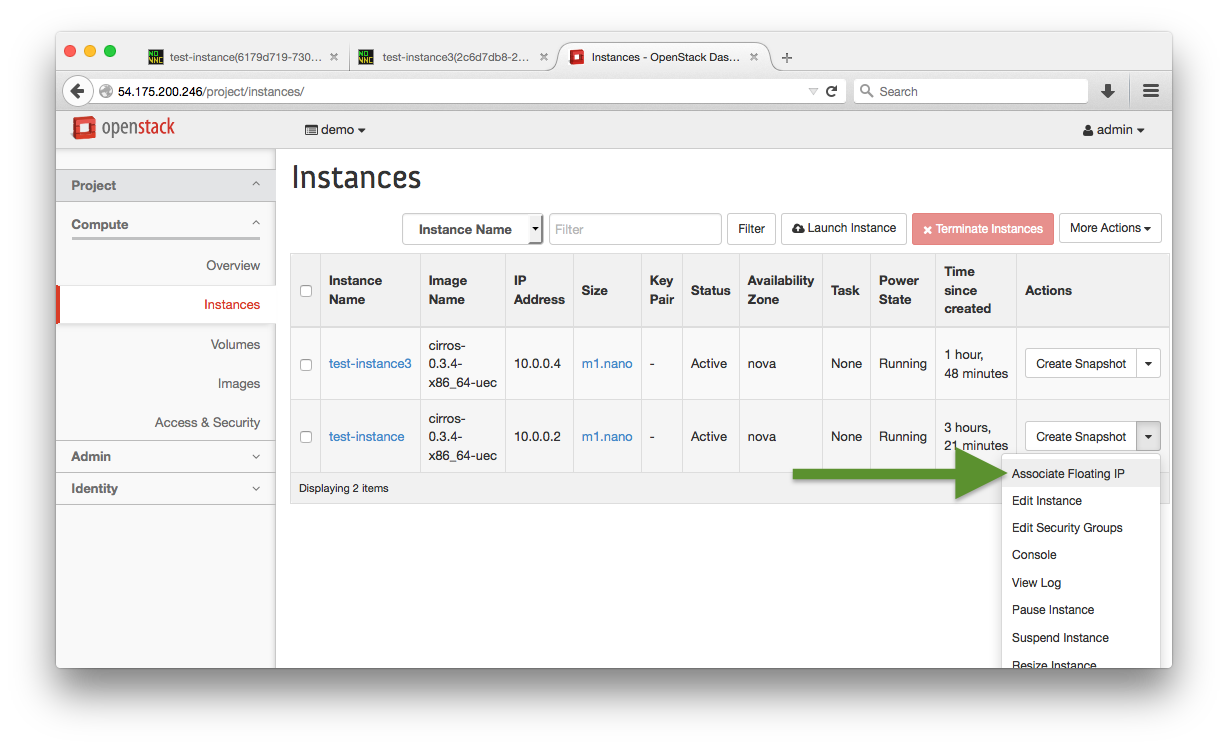
Navigate to: Project > Compute > Instances
-
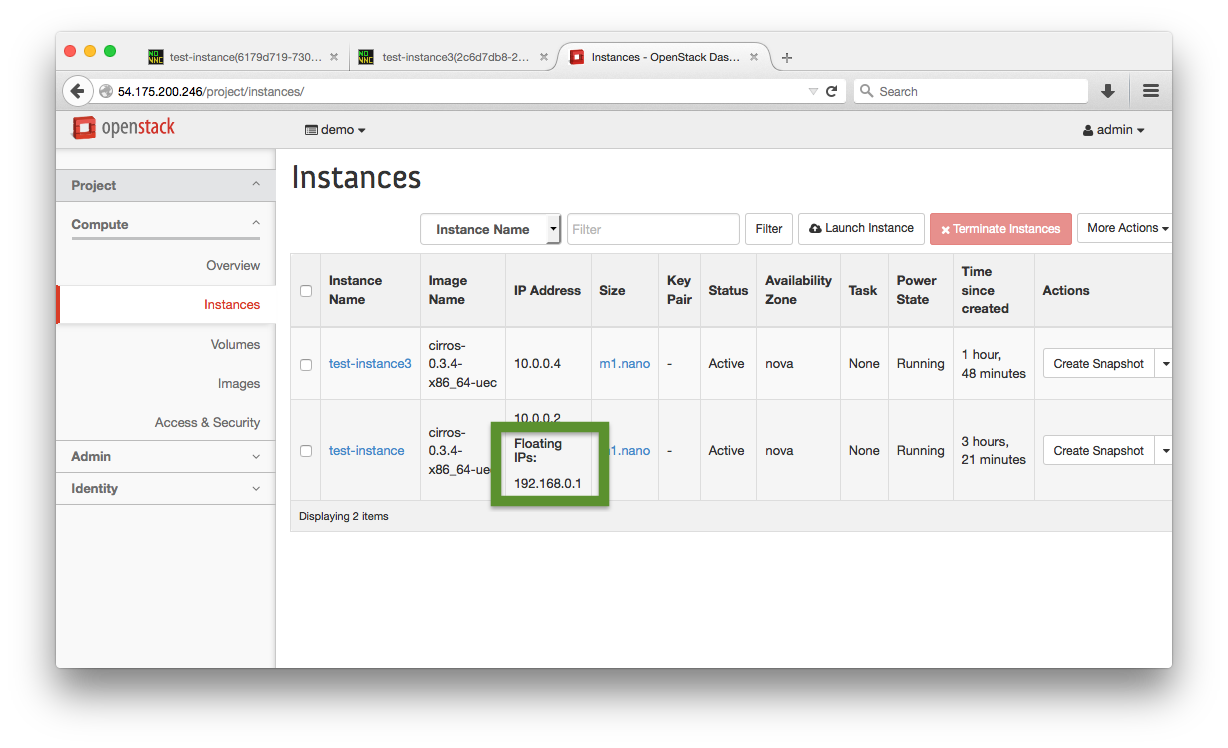
Add a floating IP address to a running instance
-
From the hypervisor that the instance is running inside ssh into the node using the Floating IP address
:red_circle: TODO: get a screen shot of this

Create and apply a Security Group
-
Login to the OpenStack Horizon Web Interface by navigating your browser to the public IP address of the controller
-
:red_circle: TODO: login as user?
-
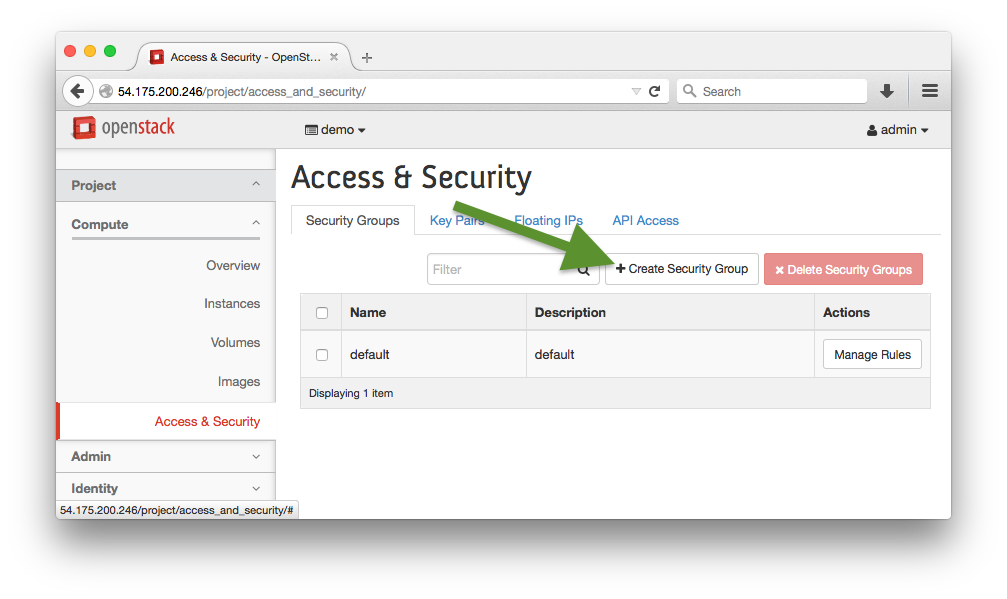
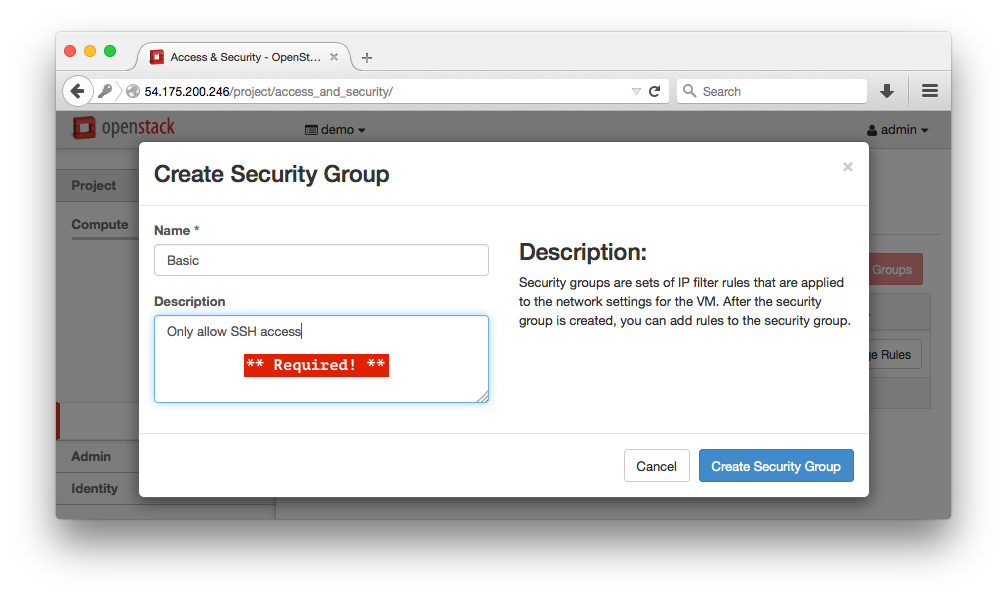
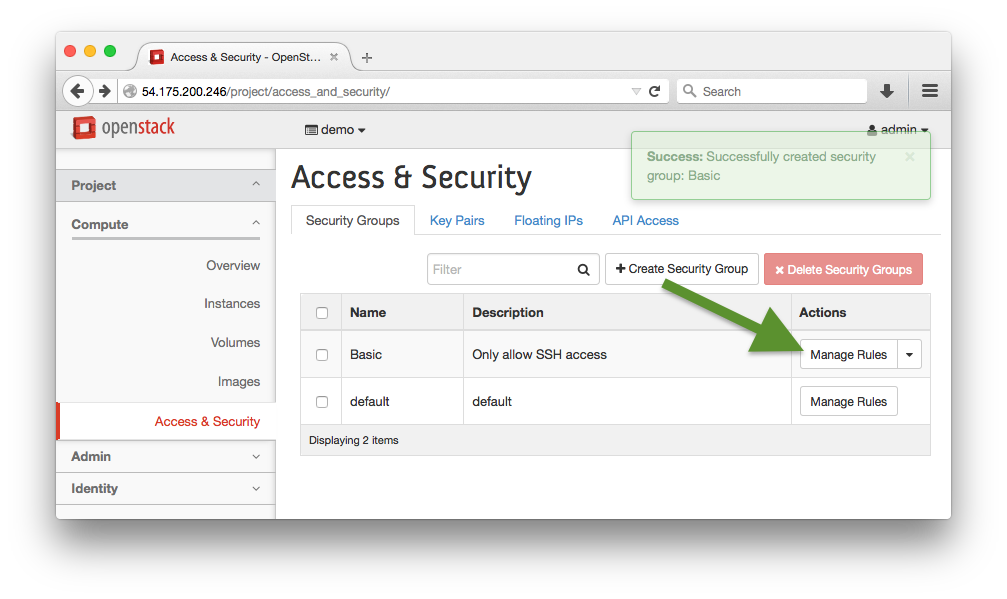
Navigate to: Project > Compute > Access > Create Security Group
-
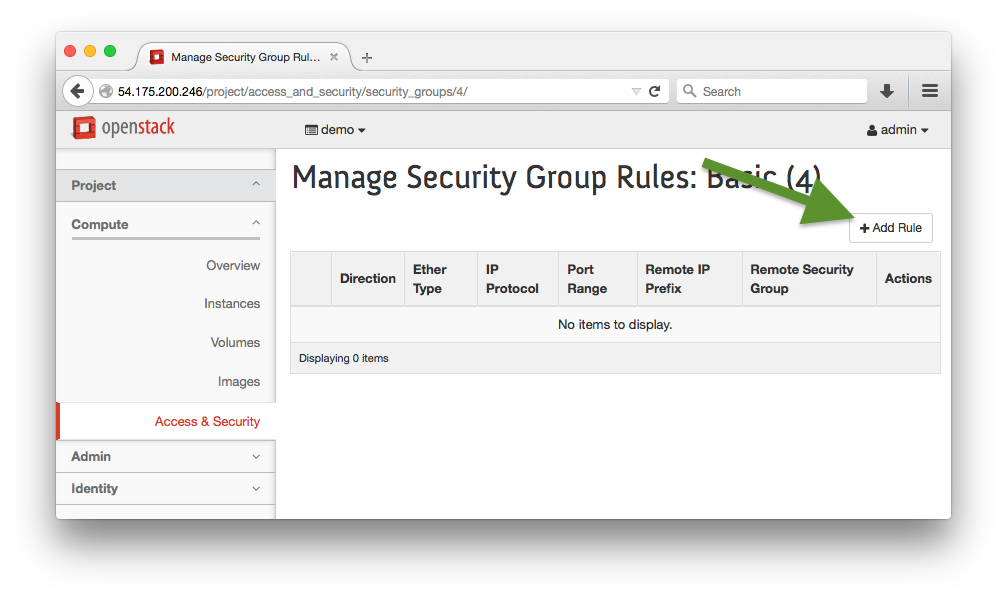
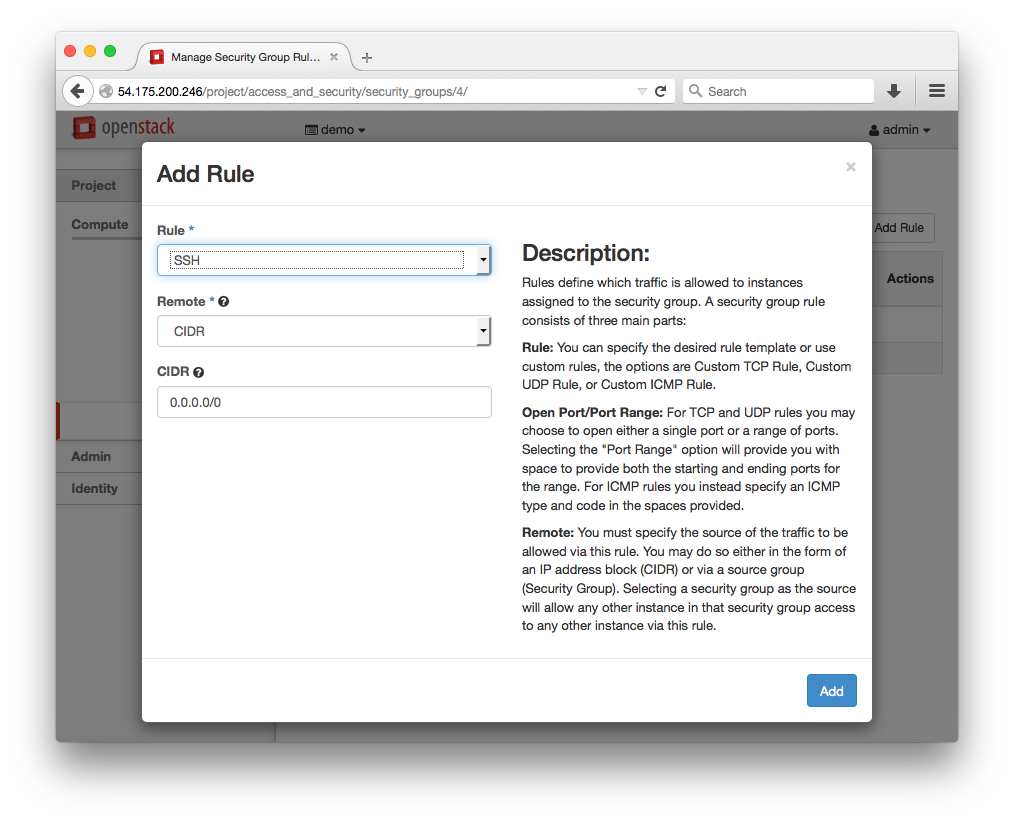
Manage the new group and add an SSH rule
-
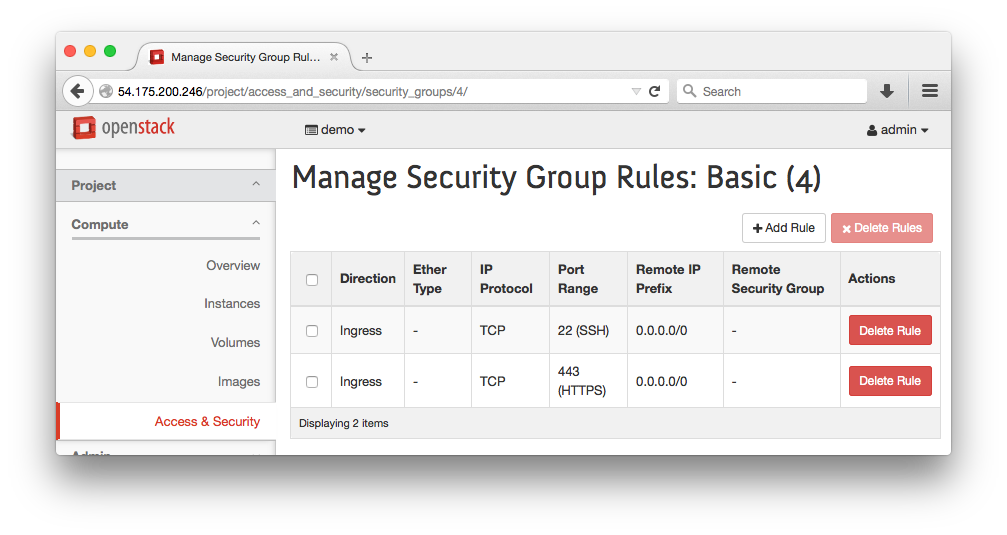
Create another rule for HTTPS, the resulting Security Group should look like this:
-
Add the security group to a running instance
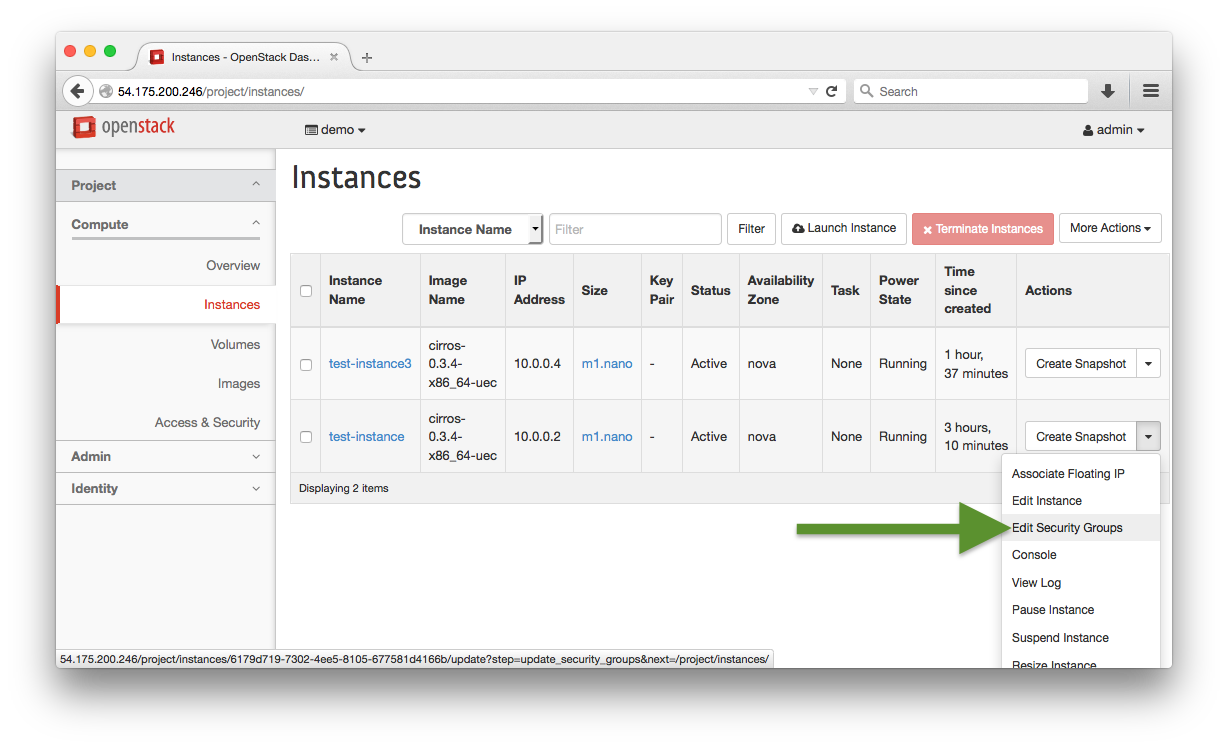
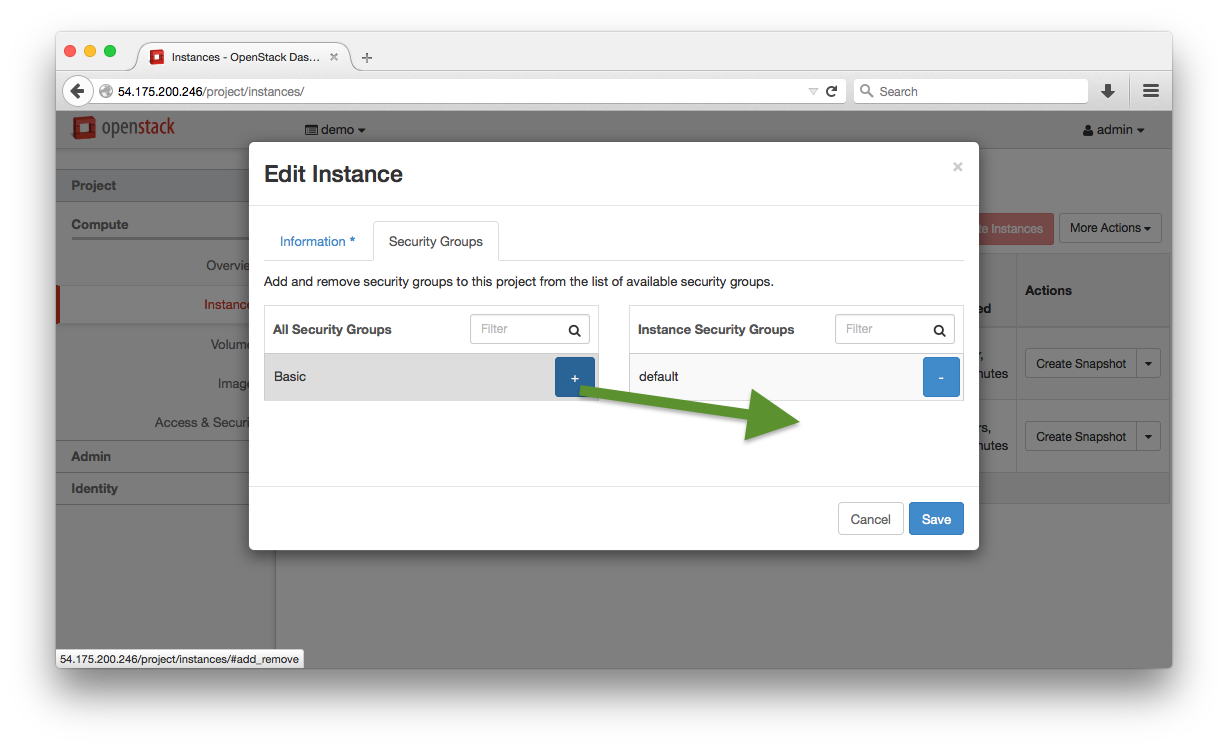
Click the
+on the Basic line and then Save
Rinse && Repeat
-
Associate a Floating IP and Security Group with your other instance
-
Log in to both and test connectivity between both Floating IP addresses for your other instance
:red_circle: TODO: get a screenshot of this
